
Search for an Order
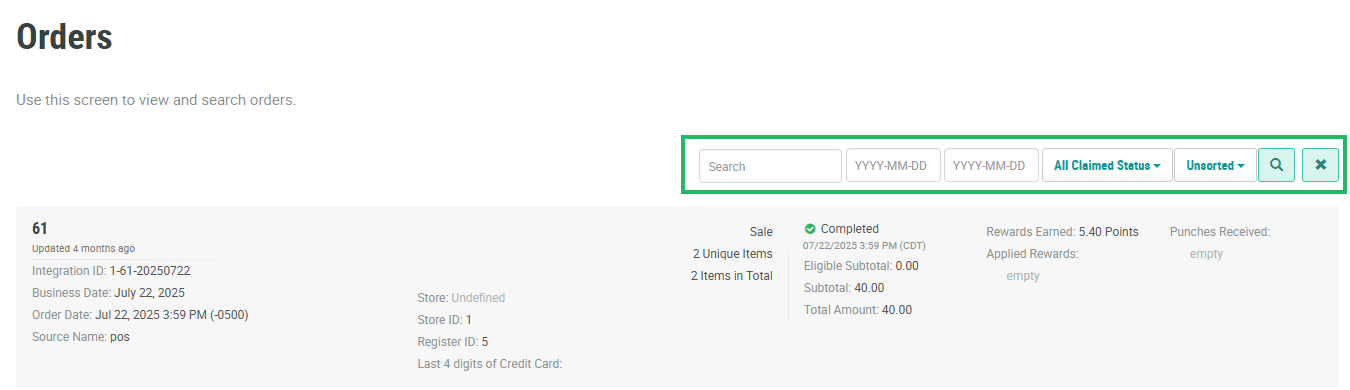
The search feature on the Orders screen allows you to search for a specified text string anywhere within the Order’s Integration ID, Transaction ID, Place ID, or Brand.
To search for an Order:
-
Select Transactions from the top navigation bar, then select Orders > Orders from the side navigation menu. The Orders screen is displayed.
-
Optionally, in the Search field, enter the desired text string.
-
Optionally, use the two date fields to define a date range for the Order Date.
-
Optionally, from the Status drop-down menu, select a status value: Claimed or Unclaimed. The default is All Claimed Status.
Note: A Claimed Order means that the sales transaction was made by a known Member. Conversely, an Unclaimed Order refers to a transaction made by an anonymous visitor.
-
Click the Search icon. The screen is refreshed to show only the Orders that meet your search criteria. If you entered multiple search criteria, the Order must meet ALL criteria.
-
Optionally, to remove all search criteria and revert to the default criteria, click the Clear icon.
-
To sort the search results, select the desired sort order from the Sort By drop-down menu. The default sort order is by: Transaction ID.
For each Order, the Orders screen displays the following information:
-
Basic Details: Integration ID, Business Date, Order Date, and Source Name. This information helps you quickly identify and track individual Orders.
-
Location: Store, Store ID, Register ID, and Operator ID. These details provide context about where and by whom the Order was processed.
-
Payment: Last 4 digits of the buyer’s credit card (if applicable). This information helps to verify the payment method used for the Order.
-
Order Details: Order Type, Total Unique Items, and Total Items. These details give you a quick overview of the Order's composition.
-
Financial Details: Status, Eligible Subtotal, Subtotal, and Total Amount. These figures provide a snapshot of the Order's financial impact.
-
Rewards: Rewards Earned, Applied Rewards, and Punches Received. This information is crucial for tracking customer loyalty and reward program participation.
